A histogram answers “how many patients fall in each bin,” and that is often enough. But the moment you want to compare the shape of two distributions, or you want a smooth curve to put in a figure rather than a staircase of bars, the kernel density estimate is the cleaner tool. A density plot draws a continuous curve whose height at any value reflects how concentrated the data are there, and the area under the whole curve is one. Reach for it when the question is about the form of a single continuous variable: is it roughly symmetric, is it skewed toward high values, does it have one peak or two?
hvtiPlotR does not provide a density helper, so this chapter builds the plot directly with ggplot2’s (Wickham et al. 2026)geom_density(). We still style it with the house theme theme_hv_manuscript() so a density panel sits comfortably next to the survival curves and scatter plots in the same paper. The pattern is the one you will use for any bare-ggplot recipe in the book: write the ggplot() call yourself, then finish with + theme_hv_manuscript().
14.2 The data it needs
A density plot needs one continuous column. To compare groups you add a categorical column to map to colour. We use hvtiPlotR::sample_eda_data() and detect a numeric column and a categorical grouping column programmatically, so the recipe keeps working if the sample schema changes. The first numeric column here is year (the surgery year) and the first categorical is valve_morph (valve morphology: Bicuspid, Tricuspid, or Unicuspid).
dat <-sample_eda_data()num <-names(dat)[vapply(dat, is.numeric, logical(1))][1]grp <-names(dat)[vapply(dat, function(x) is.factor(x) ||is.character(x), logical(1))][1]c(numeric = num, group = grp)
      numeric         group
       "year" "valve_morph"
The .data[[num]] idiom you will see below is how ggplot2 reads a column whose name lives in a variable rather than typed out as a bare symbol. It lets the same recipe run against whatever column the detection step picked.
14.3 Build it
Start with a single curve so you can see the estimate before any grouping. The fill gives the curve a soft body and alpha keeps it from reading as a solid block.
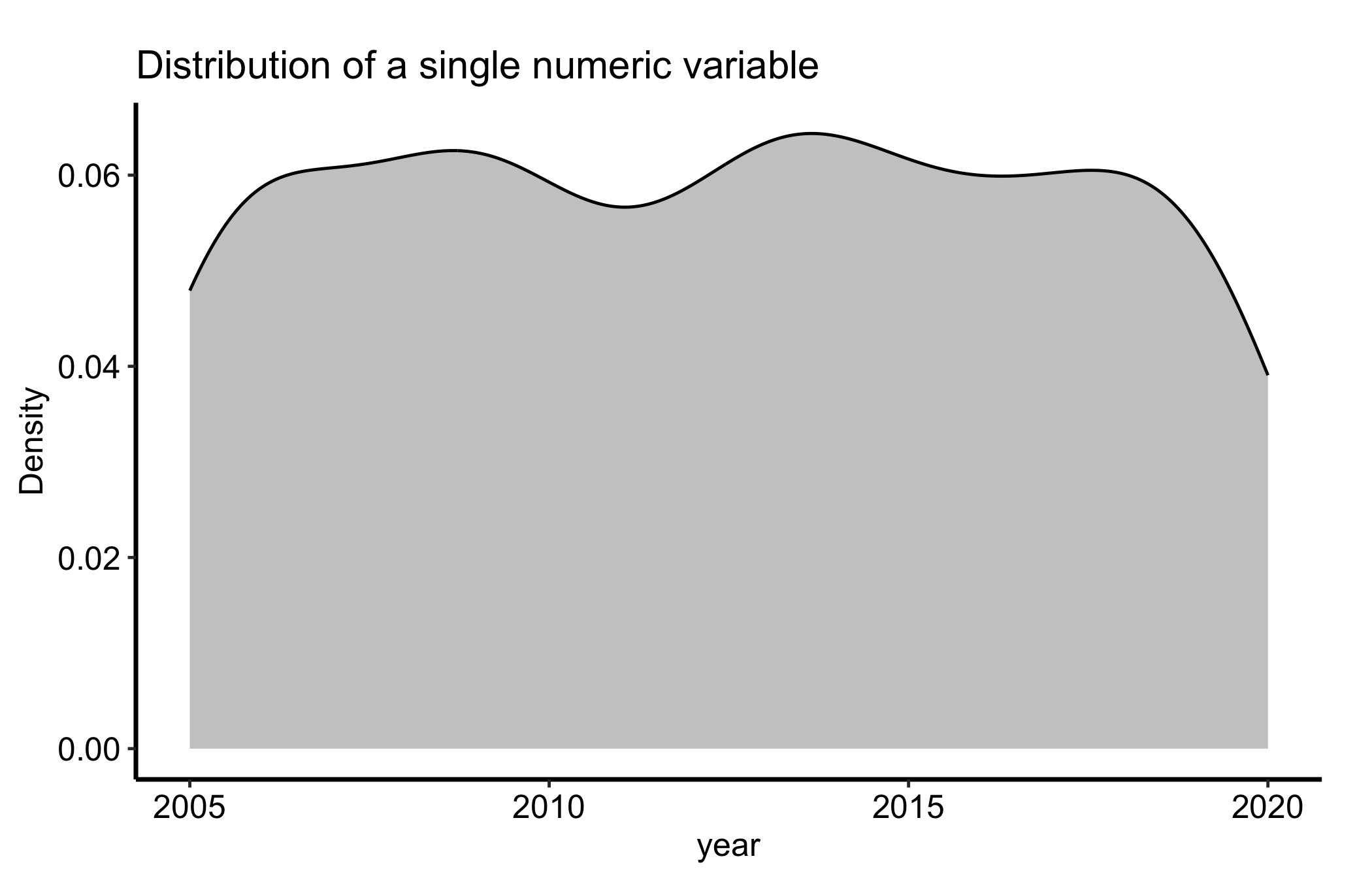
ggplot(dat, aes(x = .data[[num]])) +geom_density(fill ="grey70", alpha =0.7) +labs(title ="Distribution of a single numeric variable",x = num,y ="Density" ) +theme_hv_manuscript()
Figure 14.1: Kernel density estimate of a single continuous variable, scaled so the area under the curve is one
That curve is a smoothed version of the histogram you would otherwise draw. The y-axis is density, not count: it is scaled so the total area is one, which is what lets you put two of these on the same panel and compare them fairly even when the groups have different sizes.
14.4 Read it
A density curve gives you the shape of the distribution at a glance. Look for:
Peaks (modes). One hump means the data cluster around a single typical value. Two humps (bimodal) usually mean you have mixed two populations that belong in separate groups, an early-era and a late-era cohort, say, and the average between the peaks describes nobody.
Skew. A long tail to the right (a few large values pulling the curve out) is right skew; a long left tail is left skew. Skew tells you whether the mean and the median will agree, and whether a log transform might help downstream.
Width. A tall, narrow curve means the values are tightly concentrated; a low, broad curve means they are spread out. The height is not a count, so do not read a taller curve as “more patients.”
One thing to keep in the back of your mind: the curve depends on a smoothing choice called the bandwidth, and the same data can look smoother or bumpier depending on it. We come back to that in the pitfalls.
14.5 Variations
14.5.1 Grouped density
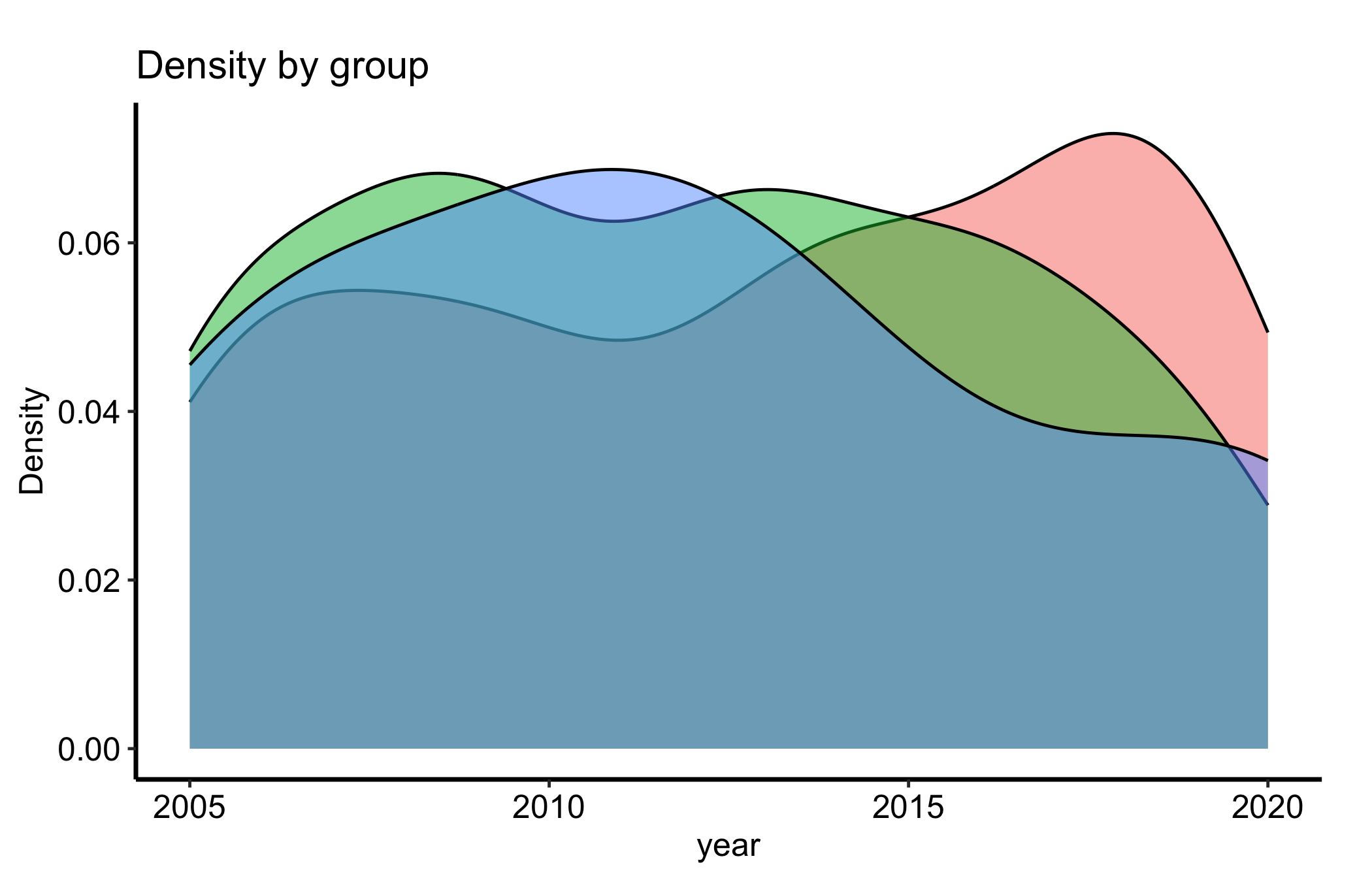
Mapping the grouping variable to fill overlays one density curve per group, with transparency so the overlapping regions stay readable. This is the comparison you actually want most of the time: not “what does this variable look like” but “does it look different across valve morphologies?”
ggplot(dat, aes(x = .data[[num]], fill = .data[[grp]])) +geom_density(alpha =0.5) +labs(title ="Density by group",x = num,y ="Density",fill = grp ) +theme_hv_manuscript()
Figure 14.2: Overlaid density curves by valve morphology, each normalised to area one so groups of different sizes compare on shape
Because each curve integrates to one, a small group and a large group are drawn on the same footing. That is the right default for comparing shape, but it also hides how many patients sit under each curve, which is the trap we flag below.
14.5.2 Tuning the bandwidth
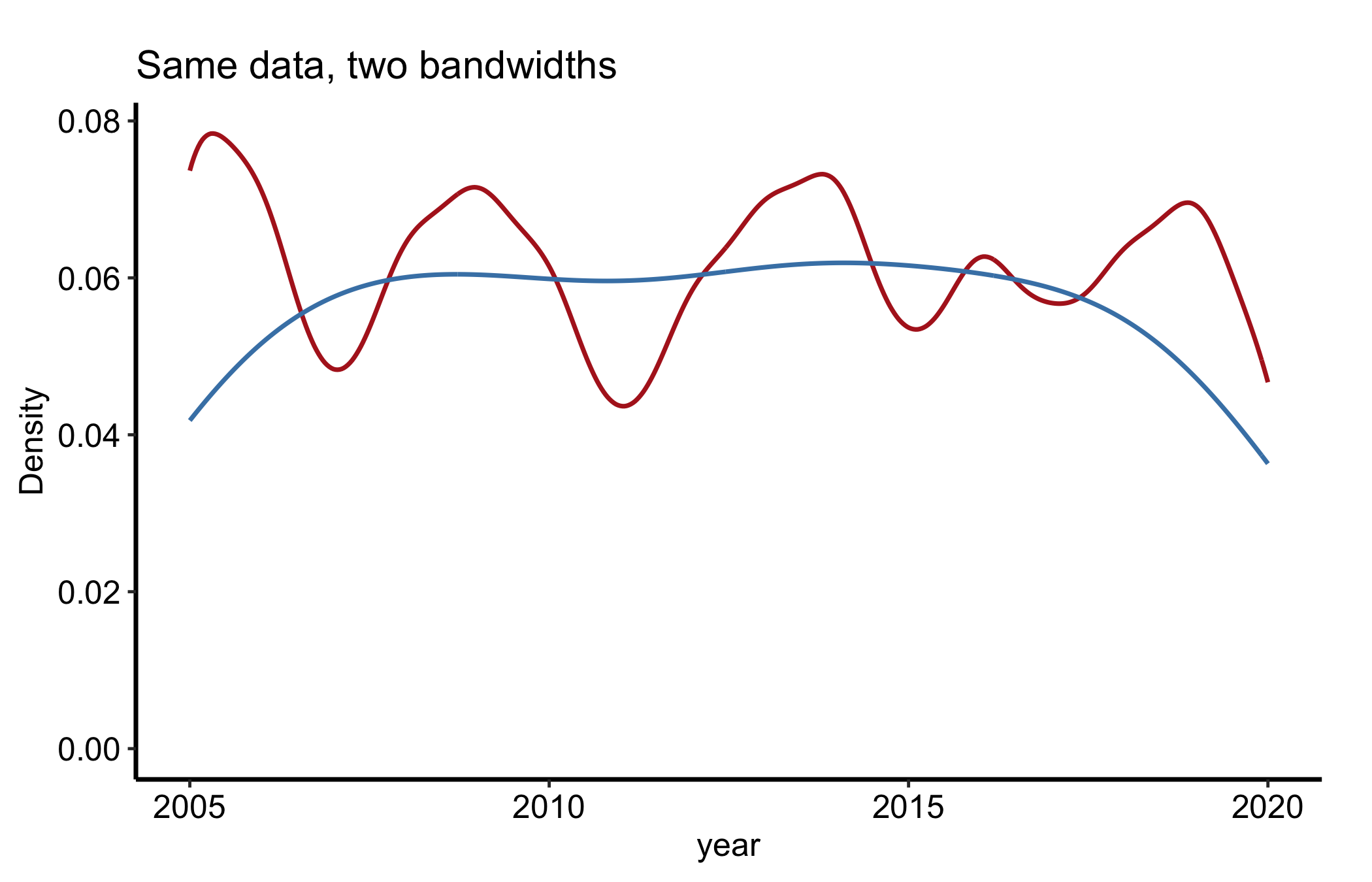
The single most consequential knob is the bandwidth, passed through adjust (a multiplier on the automatic bandwidth). Drawing two settings side by side is the honest way to show how much of a bump is signal and how much is the smoother.
Figure 14.3: The same data drawn at a narrow and a wide bandwidth, showing how the smoothing choice shapes apparent structure
If a feature survives both settings it is probably real; if it appears only at the small bandwidth it is probably noise the smoother stopped hiding.
14.6 Pitfalls
Over-smoothing and under-smoothing. Too large a bandwidth erases real structure, a second mode flattens into a shoulder. Too small a bandwidth invents structure, every cluster of three points becomes its own little peak. When a bump matters to your story, redraw it at a wider and a narrower bandwidth before you commit, the way Figure 14.3 does.
Treating a density like a histogram. The y-axis is a density, not a count. A taller curve does not mean more patients; it means the data are more concentrated there. If the reader needs counts, draw a histogram or label the group sizes.
Comparing groups with very different n. Each curve is normalised to area one, so a 19-patient group and a 167-patient group look equally trustworthy even though one rests on a tenth of the data. The small group’s curve is far more sensitive to a handful of values. Note the group sizes in the caption so the reader weights the comparison correctly.
Densities that spill past the possible range. A kernel density will happily put mass below zero for a strictly positive measurement, or above 100 for a percent. The smoother does not know the bounds. Constrain the axis or transform the variable rather than letting the curve imply impossible values.
Wickham, Hadley, Winston Chang, Lionel Henry, et al. 2026. Ggplot2: Create Elegant Data Visualisations Using the Grammar of Graphics. https://ggplot2.tidyverse.org.